
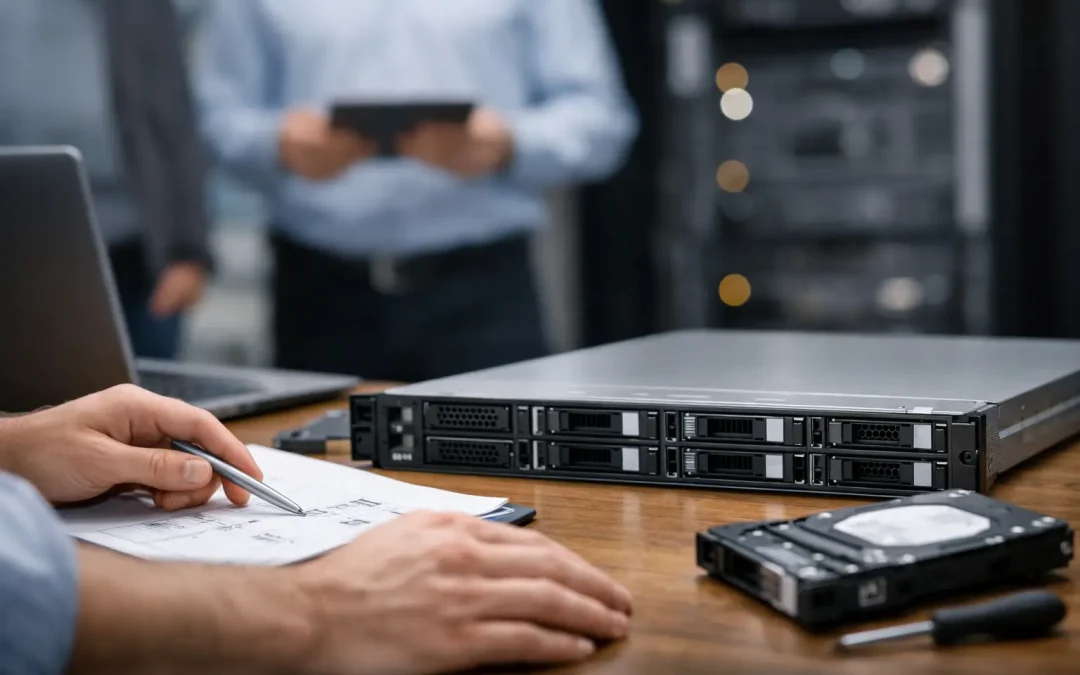
A server rarely fails at a convenient time. It fails during a busy morning, while a team is processing files, or when a remote employee needs access to a critical application. A practical server replacement planning guide helps a business replace aging infrastructure before a hardware problem becomes an outage, security incident, or costly recovery project.
For small and midsize organizations, the goal is not simply to buy a newer server. The goal is to protect business operations, preserve access to data, improve security, and make sure the new environment supports the way employees actually work. That requires a plan built around risk, applications, backups, licensing, and a carefully managed cutover.
When Is It Time to Replace a Server?
Age matters, but it is not the only reason to plan a replacement. Many business servers remain in service after their warranty expires, which can be reasonable if the equipment is stable and properly monitored. The risk rises when replacement parts are difficult to obtain, the operating system no longer receives security updates, or the server cannot support current software and storage requirements.
Warning signs often appear before a complete failure. Users may report slow file access, line-of-business applications may time out, backups may run into the business day, and storage capacity may remain dangerously close to full. A server that needs frequent restarts, shows disk or memory errors, or cannot run a supported version of Windows Server deserves immediate attention.
Security is another deciding factor. An older server may lack modern firmware protections, encryption support, or compatibility with current endpoint security and backup tools. If it holds sensitive financial, medical, legal, or customer information, continuing to operate unsupported infrastructure can create compliance and cyber insurance concerns as well as operational risk.
Start Your Server Replacement Planning Guide With an Assessment
A replacement project should begin with documentation, not an equipment quote. Before selecting hardware or moving workloads to the cloud, identify what the current server does and who depends on it. In many offices, one physical server handles file sharing, Active Directory, print services, applications, backups, remote access components, and databases. Replacing it without understanding those dependencies can create avoidable downtime.
Document the server’s processor, memory, storage configuration, warranty status, operating system, installed applications, user count, and current capacity. Record the network settings, firewall rules, IP addresses, administrator credentials, service accounts, software licenses, and vendor contacts. This documentation is especially valuable if an outside software vendor must assist with moving an application or database.
The assessment should also answer a business question: what happens if this service is unavailable for four hours, one day, or several days? A dental office may lose access to patient scheduling and imaging. A CPA firm may be unable to retrieve tax records during filing season. A legal office may lose access to case files and document management. Those consequences help determine the right level of redundancy, backup protection, and after-hours implementation support.
Identify What Should Stay On-Premises
Not every workload belongs on a new local server. Microsoft 365 can reduce dependence on an on-premises file server for some teams, while cloud-hosted applications may eliminate the need to maintain certain line-of-business systems internally. On the other hand, large local files, specialized databases, imaging systems, or applications with strict performance requirements may work best on a properly sized on-premises server.
For many businesses, a hybrid approach is the practical answer. A local server can provide fast access to critical files and applications, while cloud services support email, collaboration, offsite backups, and remote work. The right design depends on internet reliability, application requirements, compliance obligations, monthly operating costs, and how quickly the business needs to recover from an outage.
Size the New Server for Growth, Not Just Today
Buying the same specifications as the old server is a common mistake. The new system should account for growth during its expected life cycle, typically five to seven years. Consider additional employees, larger files, more demanding applications, longer data retention periods, and increased use of remote access.
Storage deserves particular attention. Fast solid-state storage can improve application and file performance, but capacity, redundancy, and recovery options matter just as much. A RAID configuration can help the server continue operating after a disk failure, but RAID is not a backup. It does not protect against ransomware, accidental deletion, hardware loss, fire, or corruption that spreads through the system.
Businesses should also consider whether the server has enough memory and processing capacity for virtualization. Running several separate virtual servers on one physical host can simplify management and isolate workloads. For example, a business may separate its domain controller, file server, and application server rather than placing every role on a single operating system. This can improve flexibility, but it also requires careful licensing, backup configuration, and monitoring.
Build Security and Backup Into the Project
A server replacement is one of the best opportunities to correct security gaps that have accumulated over time. Do not copy old permissions, outdated administrator accounts, or broad network access rules into the new environment without review. Confirm that former employees have been removed, privileged access is limited, passwords are managed securely, and remote access is protected with multifactor authentication.
The new server should receive current firmware updates, supported operating system updates, endpoint protection, and centralized monitoring from the start. Network segmentation, firewall rules, and VPN access should be reviewed at the same time. If ransomware reaches one workstation, the business needs controls that limit how far it can spread.
Backups must be tested before migration begins. A sound approach typically includes local backup for faster restores, an encrypted offsite copy for disaster recovery, and protected backup storage that attackers cannot easily alter or delete. Test the restoration of files, applications, and databases, not merely whether a backup job reports success. A backup that cannot be restored is not a recovery plan.
Plan the Migration and Cutover Carefully
The migration method depends on the server roles and applications involved. Some environments can be moved through a staged migration, allowing the new server to run alongside the old one while data and settings are transferred. Others require a defined cutover window, particularly when a database, accounting platform, or vendor-managed application must be moved.
Choose a time that limits disruption, but do not assume an evening or weekend cutover requires less planning. Employees should know what services may be unavailable, when to log off, and who to contact if they encounter problems the next business day. Application vendors should be scheduled in advance when their participation is needed.
Before the cutover, confirm that backups are complete and recoverable, new user permissions are in place, and every critical application has a validation checklist. After migration, test more than basic logins. Open shared files, print to key devices, verify email relay functions, test remote access, confirm scheduled tasks, and make sure line-of-business software can read and write data correctly.
Keep the old server available but disconnected from normal production use until the new environment has been validated. A short rollback period can prevent a minor issue from becoming a prolonged interruption. Once the project is complete, securely wipe or destroy retired drives according to the organization’s data handling requirements.
Avoid the Most Expensive Replacement Mistakes
The most costly mistake is waiting for failure to force the project. Emergency replacements limit choices, increase downtime, and make it harder to verify backups or coordinate software vendors. Other common problems include underestimating licensing costs, overlooking application compatibility, moving unnecessary data, and treating cybersecurity as a separate project.
Clear documentation and an experienced technical review reduce these risks. For businesses in Lombard and the Chicago suburbs, Tomorrow’s Solutions can assess the existing environment, identify security and recovery gaps, and build a server replacement plan around the applications and data that keep the organization running.
A planned replacement gives your business time to make sound decisions. Start while the current server is still working, test recovery before you need it, and schedule the change on your terms rather than during an emergency.