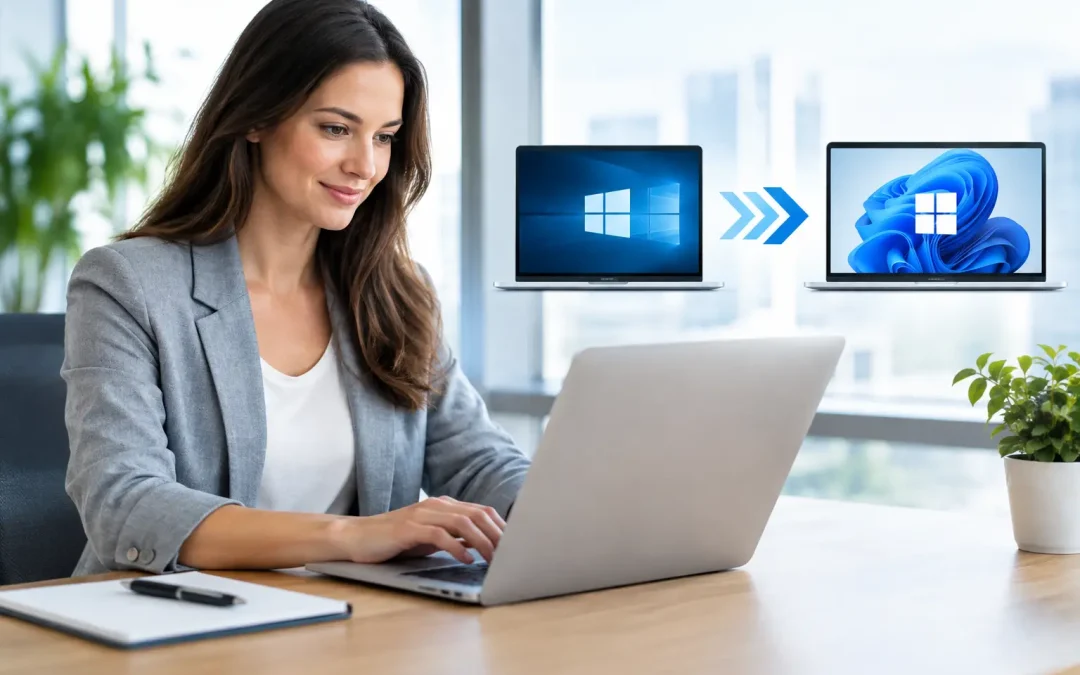
Windows 10 support ended on October 14, 2025. For a business still running it, the issue is no longer whether Windows 11 is a worthwhile upgrade. The issue is whether your Windows 11 business migration will be planned around security, application compatibility, and daily operations – or rushed after an avoidable problem.
A workstation replacement project can look simple from a distance: buy computers, install Windows 11, and move files. In practice, a poorly managed migration can interrupt billing, create printer problems, lock users out of line-of-business software, and leave old devices or credentials exposed. For medical offices, law firms, accounting practices, and other organizations handling sensitive data, those problems also carry compliance consequences.
The right approach is to treat Windows 11 as an IT continuity project, not a software update.
Why a Windows 11 Business Migration Needs a Plan
Windows 11 has stricter hardware requirements than Windows 10. Many older business PCs do not have a supported processor, TPM 2.0 security chip, adequate memory, or firmware configuration required for a supported installation. Forcing Windows 11 onto unsupported hardware may seem like a short-term cost saver, but it creates a support and security risk that most businesses do not need.
Hardware eligibility is only the first checkpoint. The larger concern is the environment around each computer. A desktop may connect to a specialty printer, an accounting package, a document scanner, a practice-management platform, mapped network drives, a VPN, cloud applications, or a remote desktop server. If one dependency is missed, the employee may have a new computer but no way to complete their work.
A business migration should also reduce risk, not just maintain the status quo. Windows 11 is an opportunity to remove inactive user accounts, strengthen endpoint protection, confirm backup coverage, improve multifactor authentication, and document systems that have been managed informally for years.
Start With an Inventory, Not a Purchase Order
Before ordering replacement computers or scheduling upgrades, create a clear inventory of the existing environment. This should identify every workstation, its age and hardware specifications, assigned user, installed business applications, peripherals, and network role.
The inventory should answer practical questions. Which devices are capable of running Windows 11? Which employees rely on software with known compatibility concerns? Which systems are shared by multiple shifts? Are there laptops used offsite that have not checked in to the network recently? Is there a device connected to a machine controller, imaging system, point-of-sale terminal, or other specialized equipment?
For many small businesses, replacing older machines is more predictable than upgrading them in place. A new business-class PC arrives with a clean operating system, current warranty coverage, better performance, and modern security features. It also allows the technician to configure and test the replacement before disrupting the employee who needs it.
That does not mean every computer must be replaced. A relatively new, compatible device may be a good candidate for an in-place upgrade. The correct choice depends on the device’s condition, its business role, its software requirements, and the cost of downtime if something goes wrong.
Test Critical Applications Before the Rollout
The most expensive migration mistakes are usually application-related. A Windows 11 computer can start normally and still fail the business if the user cannot access their accounting records, scan documents into a medical system, print checks, use their VPN, or connect to a shared database.
Identify the applications that keep the business operating and test them on a pilot Windows 11 device first. This includes browser-based platforms, desktop software, remote-access tools, security applications, printers, scanners, label makers, and any industry-specific programs. Do not rely solely on a software vendor’s general compatibility statement. Test the workflows your employees actually perform.
Pay close attention to older applications. Some may require an updated version, a newer database component, a revised driver, or a vendor-supported configuration change. Others may depend on a legacy server or use local data files that need to be moved carefully. If an application is no longer supported by its vendor, that is a separate risk that should be addressed as part of the project.
A pilot group is useful because it reveals real-world issues without affecting the whole office. Choose users with different responsibilities, such as an administrator, a heavy document user, a remote employee, and someone who uses specialized software. Give the pilot enough time to uncover problems before scheduling the broader deployment.
Protect Data and Access During the Move
A Windows 11 migration is a natural point to verify that backups are working, but backups alone are not the plan. You need to know what data is stored locally, where it should live after the migration, and how it will be restored if a device fails during deployment.
Business files should generally be stored in approved cloud storage or on managed servers, not scattered across desktop folders and local hard drives. Local data is easy to overlook when a computer is replaced. A technician should review user profiles, desktop folders, downloads, browser bookmarks, email archives, templates, and application-specific data before decommissioning an old system.
User access needs the same attention. Set up staff with the right Microsoft 365 accounts, multifactor authentication methods, email profiles, shared mailbox access, mapped drives, and approved cloud applications before their cutover date. Avoid sharing passwords during the process. If credentials have been reused or poorly documented, reset them in a controlled manner and store them in a business password management system.
For organizations subject to financial, healthcare, legal, or municipal requirements, document the migration. A written record of device assignments, security controls, access approvals, and disposal procedures supports future audits and helps meet written information security plan requirements.
Build Security Into Every New Workstation
New Windows 11 devices should not be handed to users with a basic setup and addressed later. Security configuration belongs in the standard build.
At a minimum, each computer should receive current operating system updates, endpoint protection, disk encryption, managed administrator access, screen-lock policies, and approved browser settings. Remote workers should use secured VPN or managed remote-access tools rather than exposing systems directly to the internet.
Network controls matter as well. A properly configured firewall, segmented guest wireless network, secure Wi-Fi settings, and monitored backups reduce the impact if an endpoint is compromised. Windows 11 can strengthen the endpoint, but it cannot compensate for an open remote desktop port, weak passwords, missing backups, or an unmanaged network.
This is also a good time to review administrative privileges. Many businesses have users operating with local administrator rights because it was convenient years ago. That increases the damage a malicious attachment or ransomware event can cause. Standard user access, combined with a clear process for approved software installation, is safer and easier to manage long term.
Schedule Deployment Around the Business, Not IT Convenience
A migration schedule should reflect how the office works. A CPA firm may need to avoid tax deadlines. A dental practice may need computers changed between patient hours. A hospitality business may have no tolerance for a point-of-sale outage. The best deployment window depends on the business, not a generic weekend recommendation.
For each user, prepare the device in advance, schedule a defined cutover time, transfer the needed data, test the employee’s core workflows, and keep the old computer available until the replacement is confirmed. The user should be able to send and receive email, access files, print, use required applications, and connect remotely if their role requires it.
Communication reduces frustration. Employees should know when the change is happening, what will look different, whether they need to enroll in multifactor authentication again, and who to contact if they encounter a problem. A short orientation on the Windows 11 interface can prevent small questions from becoming a wave of support tickets.
Do Not Forget Retirement and Ongoing Support
Once a workstation is replaced, the old device must be handled correctly. Remove it from management systems, revoke access tokens, confirm data has transferred, and securely erase or destroy the drive before disposal, donation, or recycling. Simply deleting files is not sufficient for equipment that may have contained client, employee, financial, or medical information.
After deployment, continue to monitor updates, endpoint alerts, backup status, and user issues. The first few weeks often reveal overlooked printer settings, application preferences, or workflow changes. A managed IT partner can keep the new environment documented and supported instead of allowing it to become another collection of one-off configurations.
For Chicago-area businesses with limited internal IT staff, Tomorrow’s Solutions can assess workstation readiness, identify security gaps, test compatibility, and coordinate a migration schedule that protects operations. A careful Windows 11 transition gives your team more than newer computers. It gives the business a cleaner, more supportable foundation for the work ahead.