
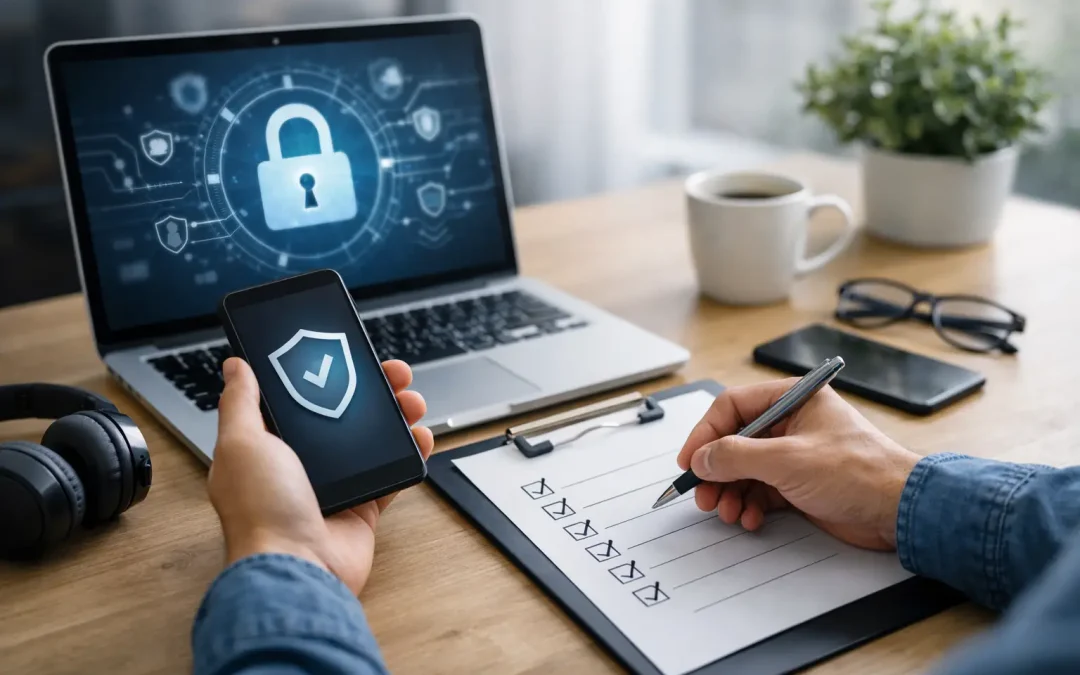
A remote employee logs in from a home Wi-Fi network, opens email on a personal phone, saves a client file to the desktop, and joins a Teams meeting from a laptop that has not restarted in three weeks. That is a normal workday for many small businesses. It is also why a remote employee security checklist matters. Remote work does not need to create chaos, but it does require clear standards, the right tools, and follow-through from both staff and management.
For small and midsize businesses, the biggest mistake is treating remote security like an employee preference issue instead of a business risk issue. If your firm handles client records, financial data, patient information, legal documents, or internal HR files, every remote login becomes part of your security perimeter. That means the checklist cannot stop at passwords. It has to cover devices, access, backups, monitoring, and user behavior.
What a remote employee security checklist should actually cover
A useful checklist is not just a policy document buried in a handbook. It should define what employees are allowed to use, what protections must be in place before remote access is approved, and what IT needs visibility into once people are working offsite.
At a minimum, your remote employee security checklist should cover device standards, identity protection, network access, email security, file handling, patching, endpoint protection, backups, and incident response. If your business is subject to compliance requirements, it should also tie back to written procedures, user acknowledgments, and access reviews.
That sounds like a lot, but most security problems in remote environments come from a short list of gaps. An unmanaged laptop, a weak password, local admin rights, missing updates, or staff using personal apps for company files can create a very expensive problem very quickly.
Start with devices, not just users
Remote work security often breaks down at the endpoint. If the computer is not configured correctly, strong passwords alone will not save you. Business owners sometimes allow a mix of company laptops, personal desktops, and family-shared machines because it feels practical. In reality, it makes support harder and security controls inconsistent.
The safest approach is to provide company-managed devices with standard settings. Those systems should have disk encryption enabled, screen lock policies enforced, approved antivirus or endpoint detection software installed, and centralized patch management in place. Employees should not be making their own security decisions on business devices.
If your company still permits bring-your-own-device access, then the checklist needs tighter limits. Personal devices should only be allowed under specific conditions, such as mobile device management, enforced passcodes, separation of business and personal data, and the ability to remotely remove company information if the device is lost or the employee leaves. For some regulated businesses, personal devices may not be appropriate at all.
Device controls to verify before remote access
Before a remote employee is granted access to business systems, IT should confirm that the device is encrypted, updated, protected by current endpoint security tools, and restricted from local administrator use unless there is a documented exception. Shared household devices should not be approved for business work. That is a simple rule that prevents a lot of unnecessary exposure.
Secure access is more than a password
One of the most common weaknesses in remote environments is inconsistent access control. An employee may have a decent password but still connect directly to cloud apps from any location, on any network, with no second layer of verification. That leaves too much to chance.
Multi-factor authentication should be standard for email, Microsoft 365, VPN access, line-of-business applications, remote desktop tools, and any administrative account. If there is a system that still does not support MFA, that should be treated as a risk to address, not a detail to ignore.
Access should also follow the principle of least privilege. Employees need enough access to do their jobs, not broad access just because it is easier to set up once. This is especially important for shared folders, accounting systems, HR files, and any platform that stores customer or patient data. Remote work tends to expose over-permissioned accounts because people need files quickly. Without regular review, access expands and rarely shrinks.
Home networks and public Wi-Fi need clear rules
A lot of remote security issues start outside the office network. Staff work from home, coffee shops, hotels, and client sites. Some of those locations are reasonable. Some are not. Your policy needs to say the difference plainly.
Home Wi-Fi should be password-protected, use current encryption standards, and run on supported routers. Public Wi-Fi should be avoided for sensitive work unless the employee is connected through an approved VPN. Even then, there are trade-offs. A VPN protects traffic in transit, but it does not fix an infected device or stop someone from shoulder surfing in a public place.
That is why a remote employee security checklist should include acceptable-use rules for where employees can work, what networks they can use, and when a mobile hotspot is a better option than public wireless. These may sound like small details, but they reduce exposure in real-world situations.
Email and file sharing are still the biggest targets
Most small businesses do not get breached through a dramatic movie-style attack. They get hit through phishing, credential theft, fake invoices, account compromise, or careless file handling. Remote workers are especially exposed because they are not physically near coworkers who might question an odd request.
Email filtering, attachment scanning, and impersonation protections should be part of the technical baseline. Just as important, employees need recurring security awareness training that reflects the threats they actually see, such as Microsoft 365 login lures, fake password reset notices, payroll scams, and vendor payment changes.
File storage needs equally clear rules. Company documents should live in approved business platforms, not on local desktops, USB drives, or personal Dropbox accounts. If employees work with sensitive records, access logging and retention controls may also be necessary. Convenience is usually the reason staff create workarounds. The fix is not just stricter policy. It is giving them secure tools that are easy enough to use consistently.
Patching, monitoring, and backups are non-negotiable
Remote devices are easy to miss. They do not sit in the office where someone notices they are out of date or acting strangely. That makes centralized monitoring essential.
Your checklist should require automatic patching for operating systems, browsers, Microsoft 365 apps, and any critical business software. Devices that miss updates should be flagged for follow-up. Remote monitoring should also alert IT to antivirus failures, low disk space, failed backups, suspicious logins, and inactive systems that may have fallen out of management.
Backups are just as critical, especially with ransomware still hitting small businesses hard. It depends on how your systems are structured, but in many cases you need both cloud data protection and endpoint backup coverage. Do not assume that storing files in a cloud platform automatically gives you the recovery point your business needs. Backup scope, retention, and restoration testing should all be defined before an incident, not during one.
The human side of the remote employee security checklist
Even strong technical controls can be undermined by unclear expectations. Employees need simple instructions they can remember and follow. That means short policies, repeat training, and a straightforward process for reporting lost devices, suspicious emails, or accidental data exposure.
Managers also need to support the policy consistently. If leadership makes exceptions every time a device is inconvenient, a password prompt feels annoying, or a file-sharing rule slows someone down, the checklist becomes optional. Once that happens, security depends on individual judgment, which is not a reliable control.
For many businesses, this is where outside IT support adds real value. A managed IT partner can standardize remote device setup, enforce access controls, monitor for issues, document procedures, and help build a written security plan that aligns with insurance, compliance, or WISP requirements. That is often more effective than expecting an office manager to coordinate security across laptops, phones, email, VPN, and cloud applications.
How to use this remote employee security checklist in practice
The best checklist is one you can apply during onboarding, review during quarterly audits, and use again when someone changes roles or leaves the company. It should not live as a one-time setup document. Remote security changes as employees adopt new apps, use new devices, and access more systems.
A practical approach is to review remote workers in groups. Start with who has access to sensitive systems. Then verify device compliance, MFA enrollment, backup coverage, admin rights, file-sharing behavior, and recent security training. If you find gaps, fix the highest-risk items first. For most SMBs, that means unmanaged devices, weak identity controls, and poor visibility.
If your business has grown quickly, opened satellite locations, or hired hybrid staff without a formal process, now is the right time to tighten this up. Security problems rarely announce themselves early. They show up after a ransomware event, a failed audit, or a client asking how remote access is protected.
A remote workforce can absolutely be secure, but only if security is treated as part of daily operations instead of an afterthought. A good checklist gives your team clear rules, gives IT something enforceable, and gives your business a far better chance of avoiding the kind of preventable incident that stops work cold.